

FoldCam
Camera · iPhone · Version 1.0
FoldCam
Press record. It’s just a file.
A camera for the things you mean to keep. Give each one its own folder — a child’s first year, the loft conversion, a trip, your training — then record a clip or take a photo, and it goes straight into that folder. Not lost among thousands of shots in your camera roll, but together and easy to find in the Files app.
$8, pay once, on the App Store. iPhone, iOS 18 or later. No subscription, no account, no adverts.
A drawing of FoldCam’s camera screen, made to match the app. Every other picture on this page is a real screenshot.
Why it exists
Some things deserve their own folder. Your camera roll isn’t an archive.
Film a child’s first year on a normal camera app — or a house coming apart and going back together — and you get a few hundred clips and photos called things like IMG_4821, shuffled in among forty thousand others, in a library you can’t easily hand to anyone. FoldCam keeps them together, somewhere you can find them, name them and back them up yourself.
In the camera roll
- Everything goes into one enormous pile
- Everything is called IMG and a number
- Albums live inside the Photos app, not as folders you can copy
- Getting the originals out means exporting them
In FoldCam
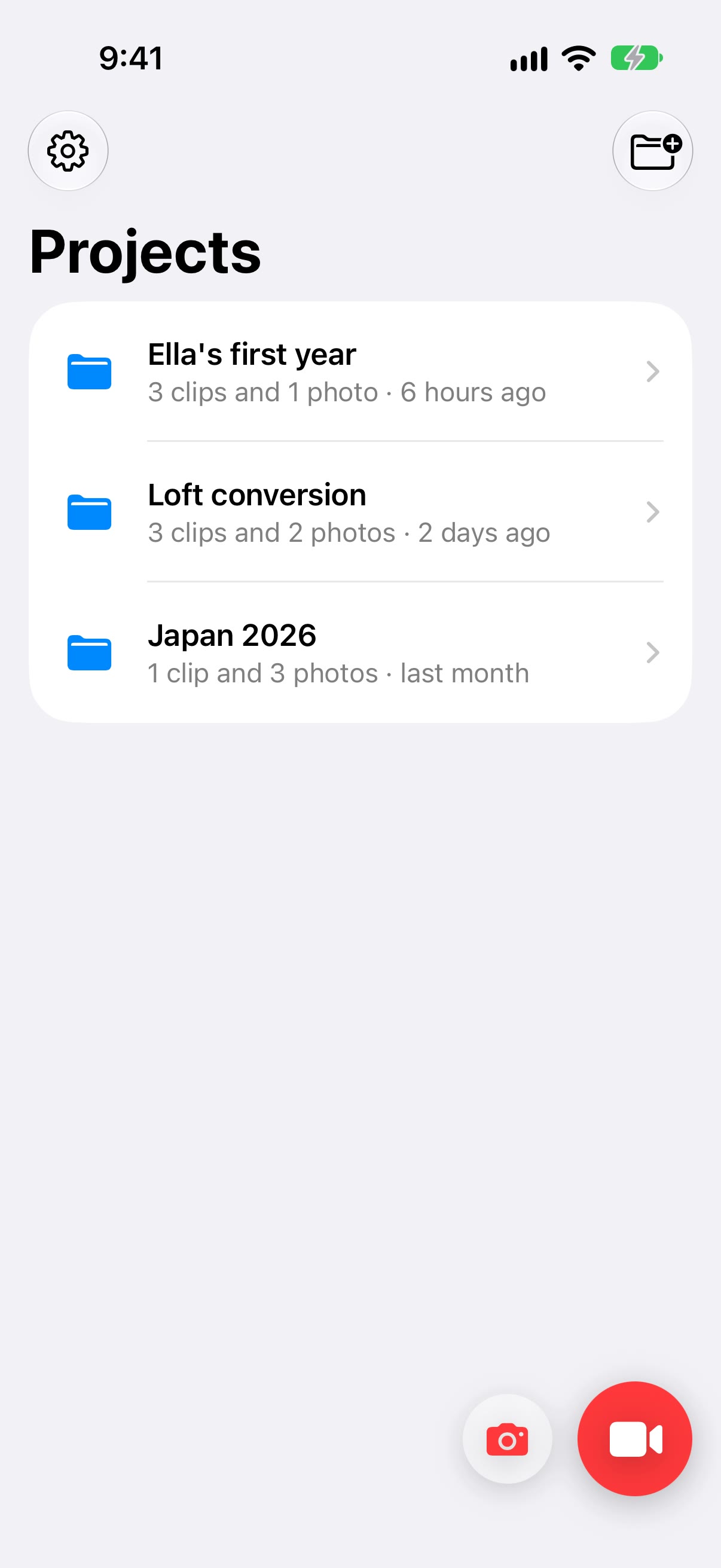
- One folder for each thing you film: Ella’s first year, Loft conversion, Japan 2026
- The title you type becomes the file name
- Ordinary folders of ordinary videos and photos, right there in the Files app
- Drag them to a Mac, a drive or a backup — they’re just files
Folders
A folder for every thing you’re recording.
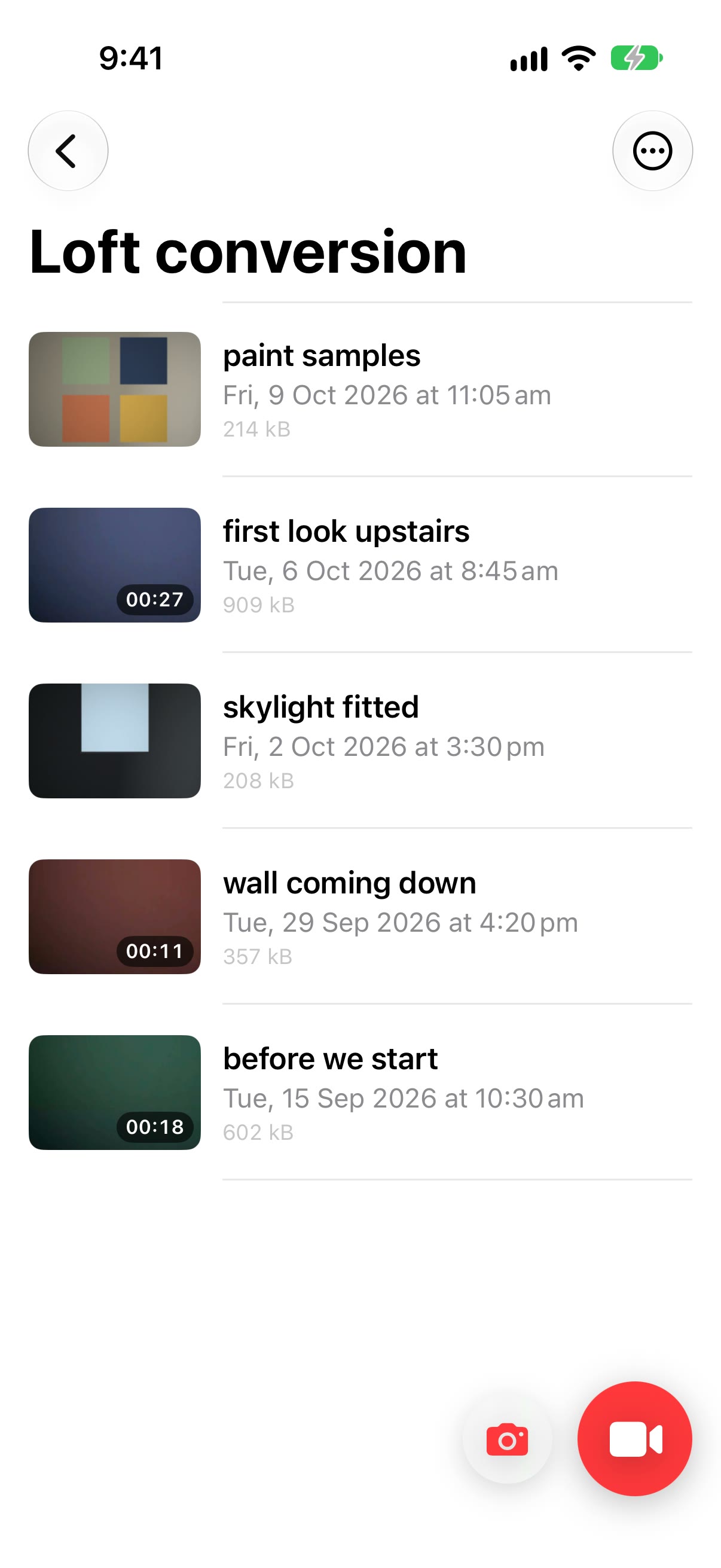
One for the baby’s first year, one for the loft conversion, one for the trip you’re saving up for. Each one shows what’s inside at a glance: “3 clips and 2 photos · 2 days ago”. Two round buttons sit under your thumb, one for video and one for photos. From the list they take you straight into the folder you used last; inside a folder, into that one.
- Touch and hold either button to record into, or take photos for, another folder
- Create, rename and delete folders whenever you like
- Inside a folder, clips and photos sit together in date order. Give one a title, or pick several to share or move to another folder in one go
- “Show in Files” takes you to the same folder in the Files app
- Deleting a folder asks first, and says plainly that every video and photo in it will go. If you’ve put other things in it yourself, FoldCam leaves them, and the folder, alone.
Video and photo
Tap video or photo, and you’re ready.
Tap the video button and the camera opens already recording — no setup screen, no countdown. Tap the photo button and it opens ready for photos: take as many as you like, and the last one sits in the corner with a count. A Video / Photo switch above the shutter lets you change your mind before you start.
- A red timer counts the seconds, the screen stays awake, and image stabilisation is on
- Pause and carry on whenever you like, and it’s still one clip. You can even switch camera while paused, ready for the next shot
- Switch between the front and back camera while you film. When you stop, FoldCam joins it all into one clip, with a short jump at each switch
- Ultra wide, standard and telephoto lenses on iPhones that have them, plus pinch to zoom
- In photo mode you see the whole picture you’re about to take. Selfies are saved the right way round, not mirrored, just like the videos
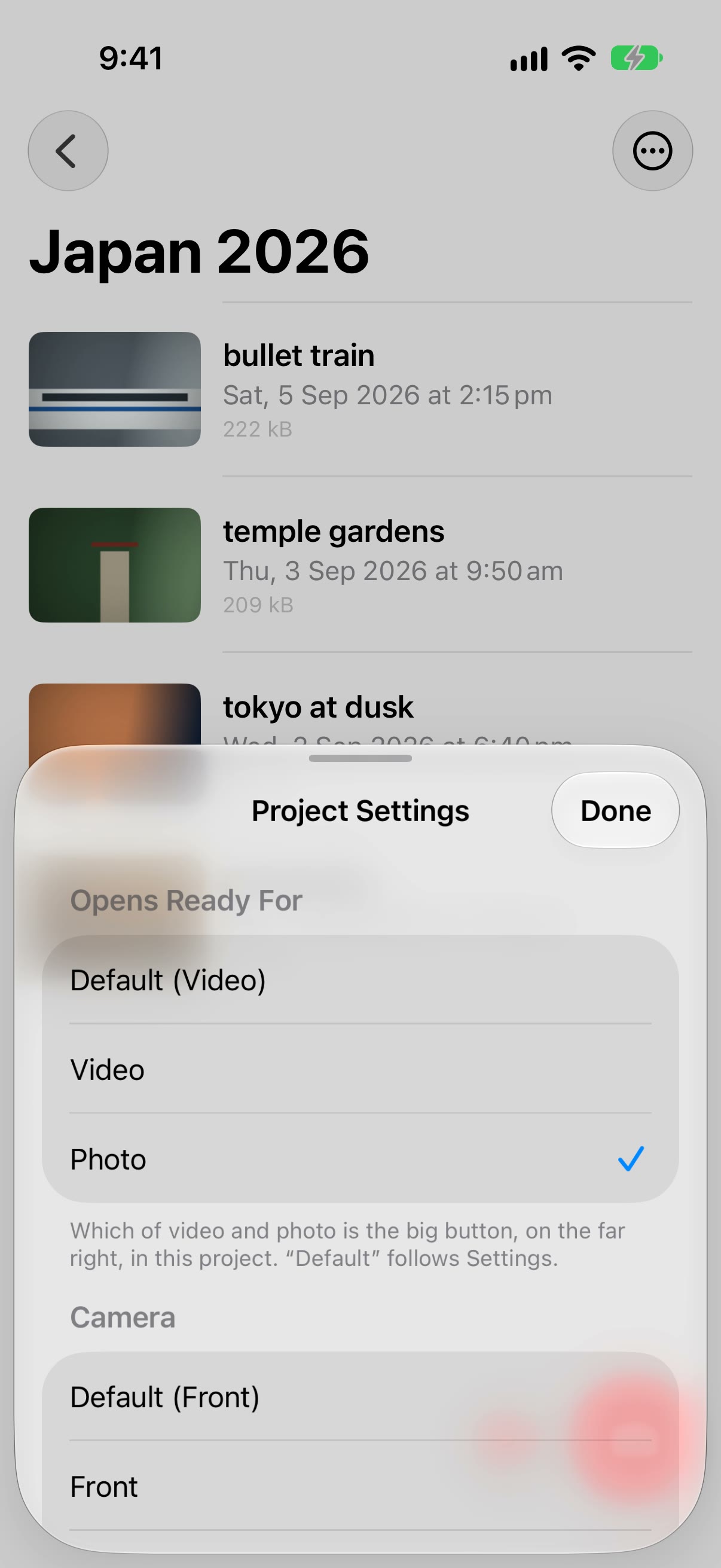
- Each folder can open ready for video or photos, on the front or back camera, so a trip can open ready for photos while the first year opens ready for video. Out of the box it’s video, on the front camera
- Close mid-recording and it asks first: “Discard this recording?”
- If you’ve said no to the microphone it still records, silently, and tells you so on screen
Photos
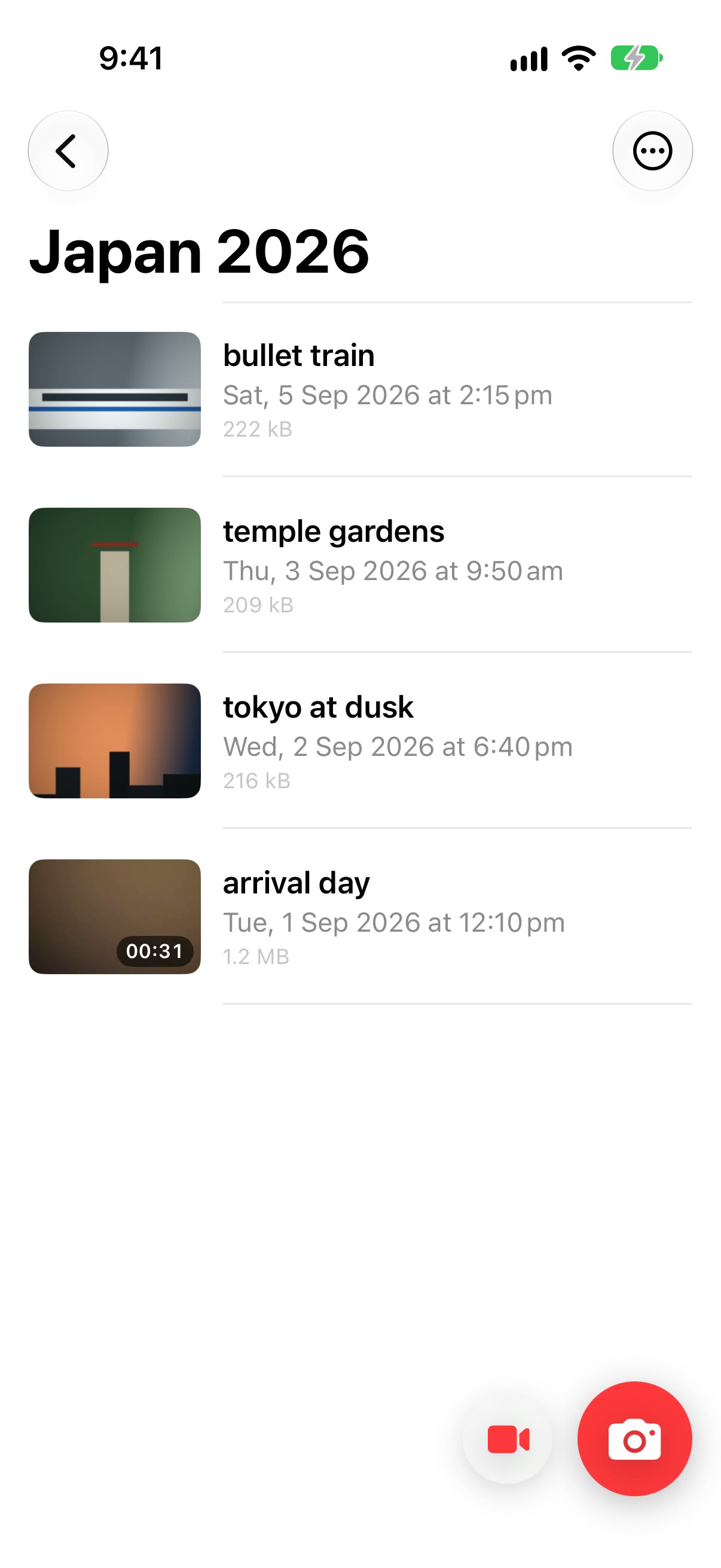
Photos go in the same folder as the clips.
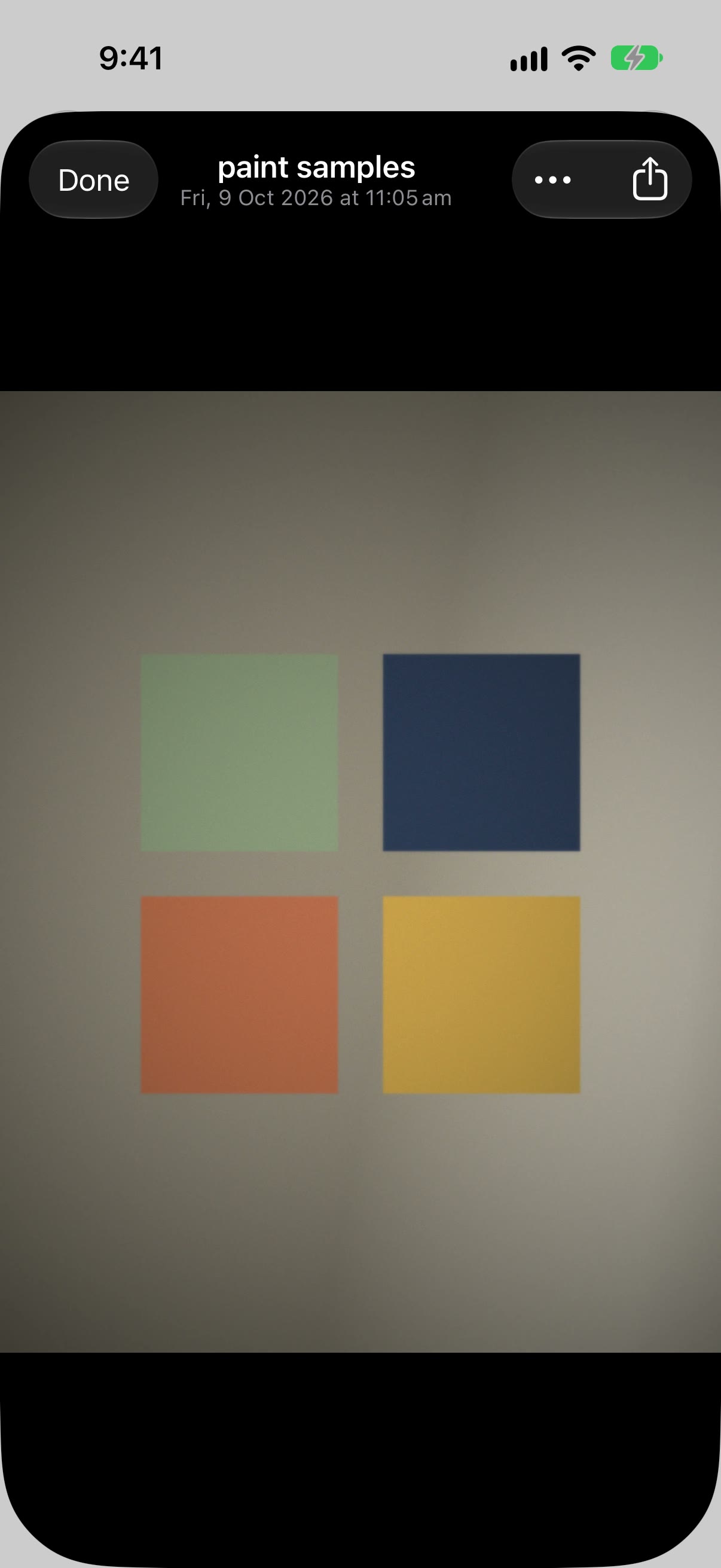
The paint samples, the receipt for the skylight, the view from the hotel: they belong with the footage, so that’s where they go. Tap one to see it full screen on black, pinch or double-tap to zoom, give it a title or share it.
- Saved as ordinary photos, named by date and time like the clips
- Give one a title and it becomes the file name. The title is saved inside the photo too, where other photo apps can read it, without touching the picture’s quality
- Bring in videos and photos you already have, from Photos or Files. They’re copied in at full quality, keeping their names and the date they were taken
From the Home Screen
Record first. Choose the folder after.
Something’s happening and there’s no time to find the right folder. Touch and hold the FoldCam icon on your Home Screen and choose Record or Take Photo: Record starts filming straight away, Take Photo opens ready for photos. When you stop, FoldCam asks which folder it belongs in — one you already have, or a new one you name there and then. Photos are filed the same way when you close the camera.
- The folder picker starts on the one you used last
- Not sure yet? It waits in a folder called Unassigned, which tidies itself away once it’s empty
- The same happens if you tap record before you’ve made any folders
- A quick action never interrupts a camera that’s already open

Touch and hold the app icon.
The file name
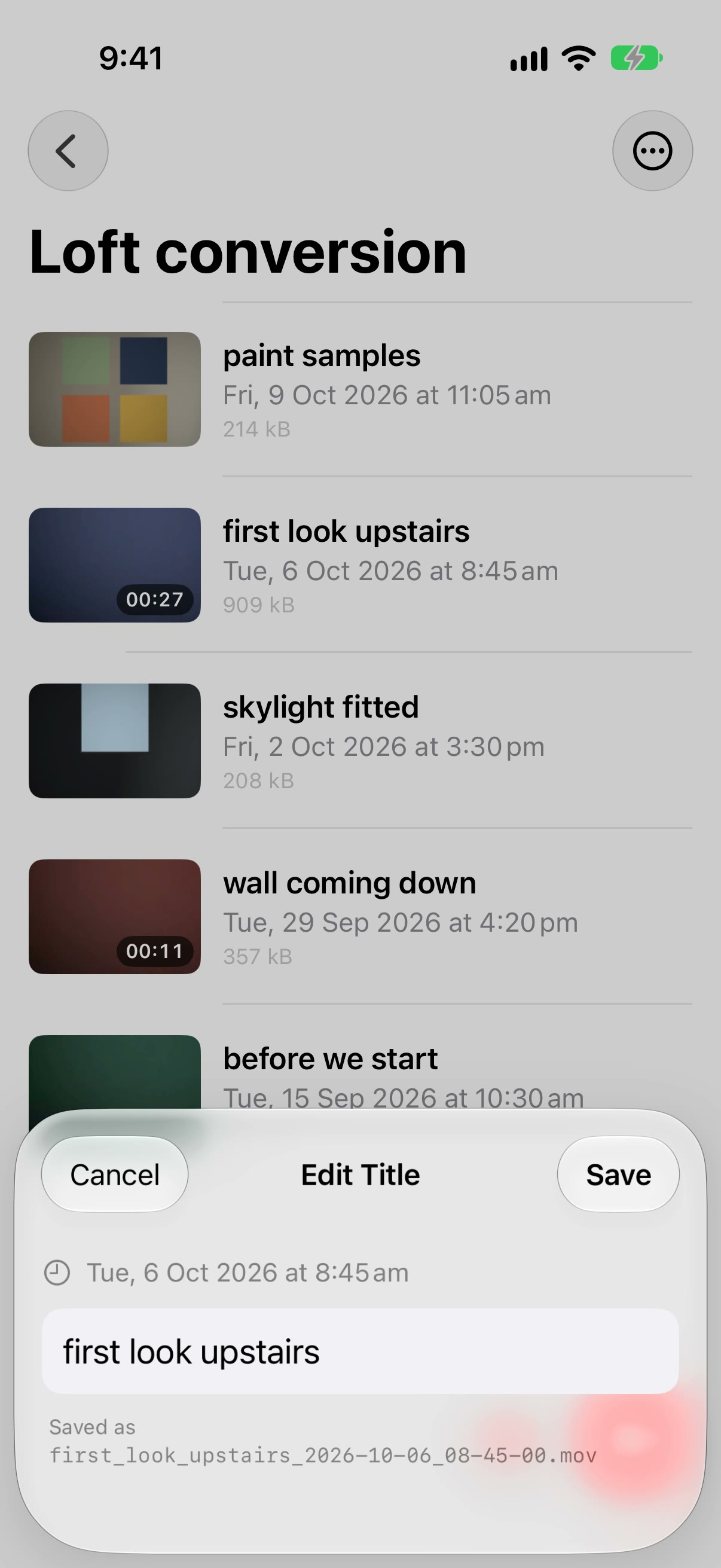
Give it a title. That’s the file name.
When you stop recording, FoldCam offers to give the clip a title. Type “First look upstairs” and that’s what the file is called, with the date and time on the end, so years from now you can find it by what happened rather than by a number. Skip the title and it’s named by the date and time alone. Photos can be titled the same way.
Saved as
first_look_upstairs_2026-10-08_08-45-00.movTry a title of your own. This names it exactly as the app would, then adds the date and time it was recorded.
Storage
It lives in a location you choose.
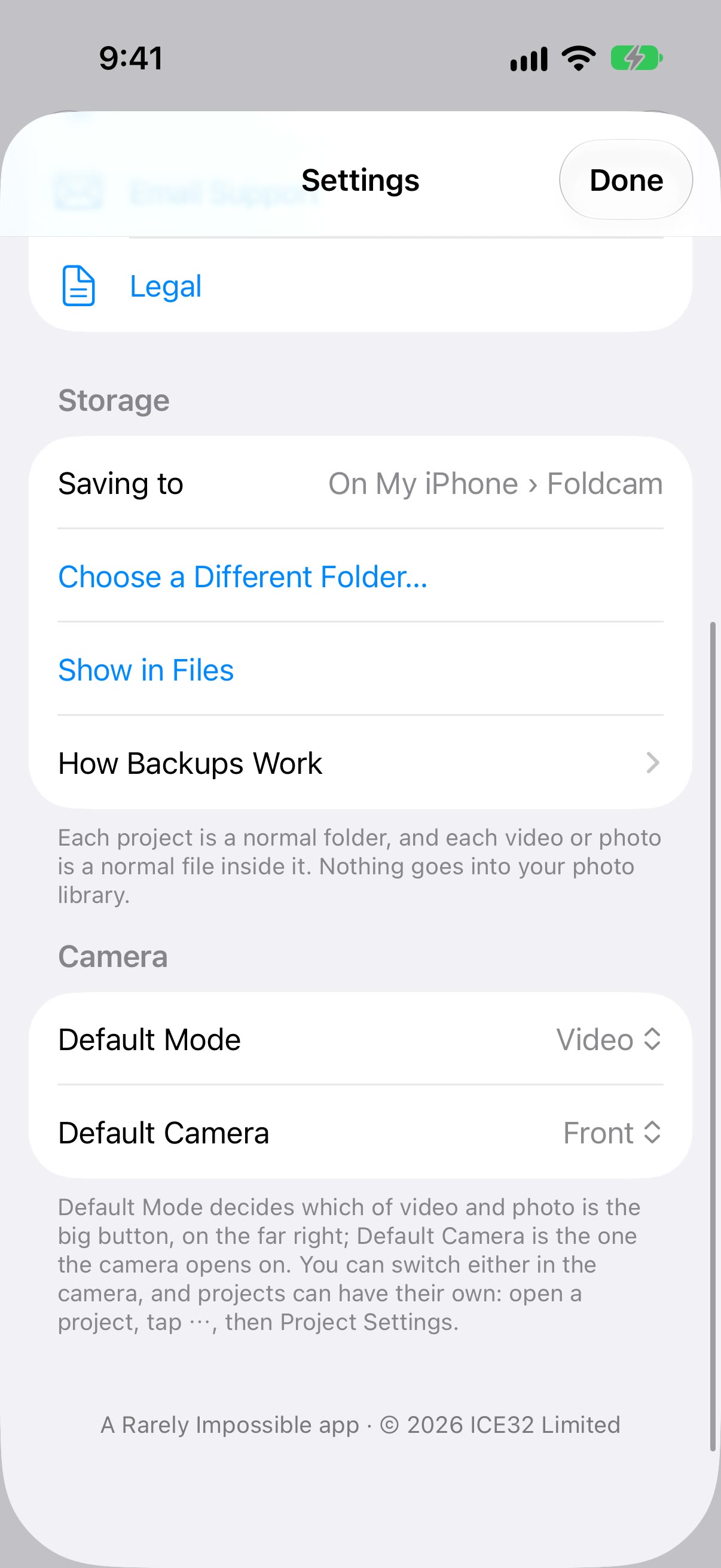
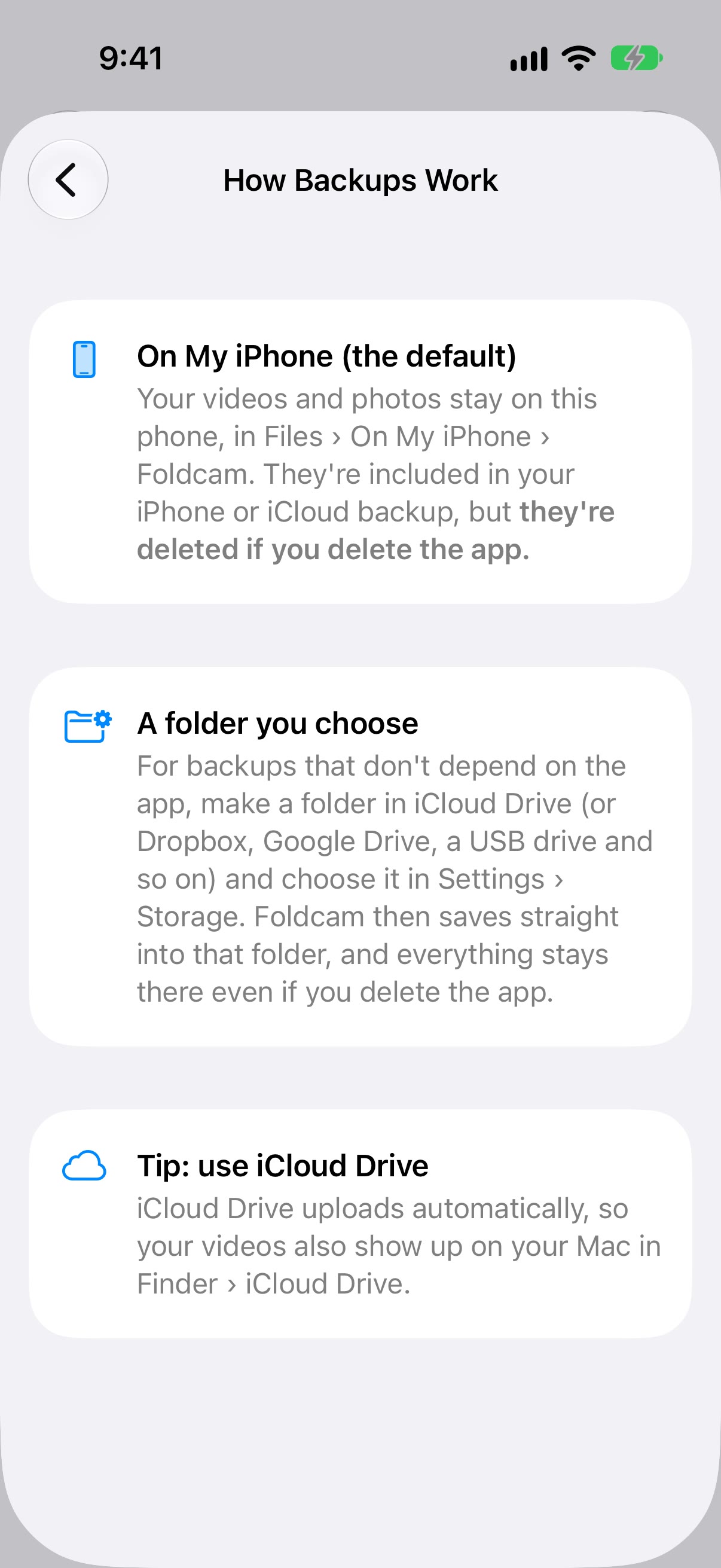
Out of the box, your folders are in the Files app, under On My iPhone › FoldCam. Rather keep them in iCloud Drive, Dropbox or on a USB drive? Choose a different location in FoldCam’s settings and it saves straight there, and offers to bring what you already have along.
Why it matters: if you delete the app, anything still saved On My iPhone goes with it, as with any app. Videos and photos in a location you chose stay exactly where they are. The app’s “How Backups Work” screen explains this before you ever need to find out.
- If moving your folders goes wrong part way, they’re all put back where they were, so nothing ends up split between two places
- If your chosen location can’t be reached, FoldCam tells you and saves on your iPhone until you choose it again
Watch how it works
Forty seconds, start to file.
The promise
No ads. No tracking. Privacy first.
FoldCam has no sign-in, no uploads and no analytics, and we never see what you record. It stays in the location you chose, and only goes anywhere else when you share it.
What’s new
Every version, in plain words.
What changed and when. Updates are free, and there is never anything to buy inside the app.
-
1.0
13 October 2026
The first release: folders for everything you film, video and photos, titles that become file names, lossless trimming, importing from Photos and Files, and your choice of storage location.
Support
Questions, answered.
Something not working, or an idea for the app? Email [email protected] with your iPhone model and iOS version. Replies usually within two working days.
FoldCam needs an iPhone with iOS 18 or later, and works in portrait only.
Where do my videos and photos actually go?
Into the Files app. By default that’s On My iPhone › FoldCam. Each folder you make in FoldCam is a real folder there, and each clip or photo is a normal video or photo file inside it. Nothing goes into your photo library.
Can I save straight into iCloud Drive or Dropbox?
Yes. Open Settings › Storage › “Choose a Different Location…” and pick anywhere the Files app can see: iCloud Drive, Dropbox, a USB drive and so on. FoldCam then saves straight there, and offers to move your existing folders across. “Switch Back to On My iPhone” undoes it.
What happens to my videos and photos if I delete the app?
Anything still saved On My iPhone is deleted with the app, as it would be with any app. Videos and photos saved in a location you chose stay exactly where they are. That’s the point of choosing a location, and the “How Backups Work” screen in the app says so plainly.
What are the files called?
Whatever you title it, followed by the date and time. “First look upstairs” becomes first_look_upstairs_2026-10-08_08-45-00.mov. Skip the title and the name is just the date and time. Photos are named the same way. The title is also saved inside the file itself, where other apps can read it.
Can I edit the videos in FoldCam?
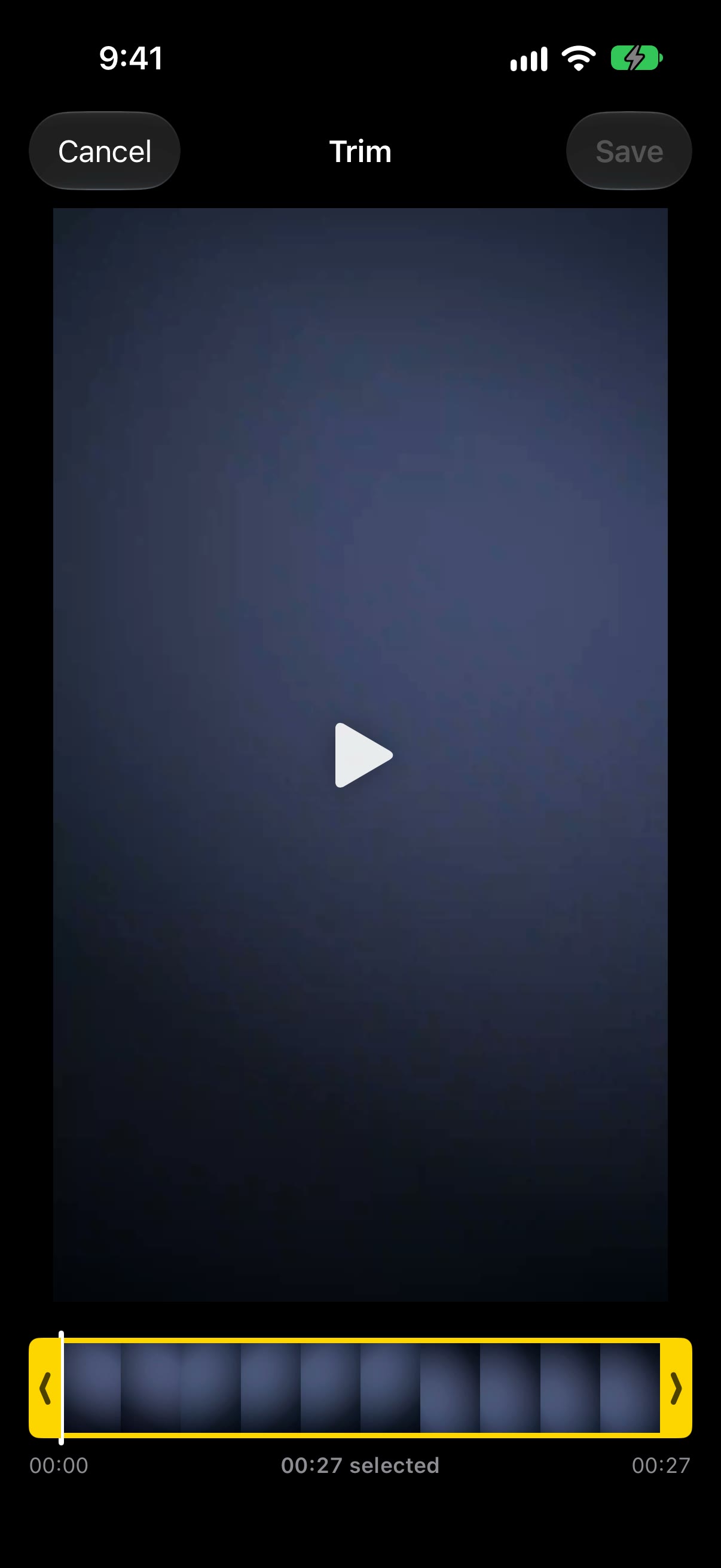
You can trim them, with no loss of quality, and keep the trimmed part as a new clip or in place of the original. FoldCam doesn’t join separate clips together or do any other editing. They’re ordinary videos, so any video editor can take it from there. Photos can be titled, shared and moved, but not edited.
Can I switch camera while recording?
Yes. Tap the switch-camera button mid-recording and FoldCam carries on with the other camera. When you stop, the parts are joined into one clip, with a short jump at each switch. If the parts ever can’t be joined, each one is kept as its own clip rather than lost.
Does it record sound?
Yes, if you allow the microphone. If you don’t, FoldCam still records, silently, and shows a yellow microphone sign on the camera screen so you can’t miss it.
Can I bring in videos and photos I already have?
Yes. In a folder, open the ⋯ menu and choose Import from Photos or Import from Files. They’re copied into that folder at full quality, keeping their names and the date they were taken. Nothing in your photo library is changed or deleted.
Does FoldCam send my videos or photos anywhere?
No. FoldCam never sends your videos or photos anywhere. They only leave your phone when you share them, or when you choose a cloud storage location such as iCloud Drive. There are no accounts, no ads, no tracking and no analytics. The details are in the FoldCam privacy policy.